Prerequisites: What You Need Before Linking
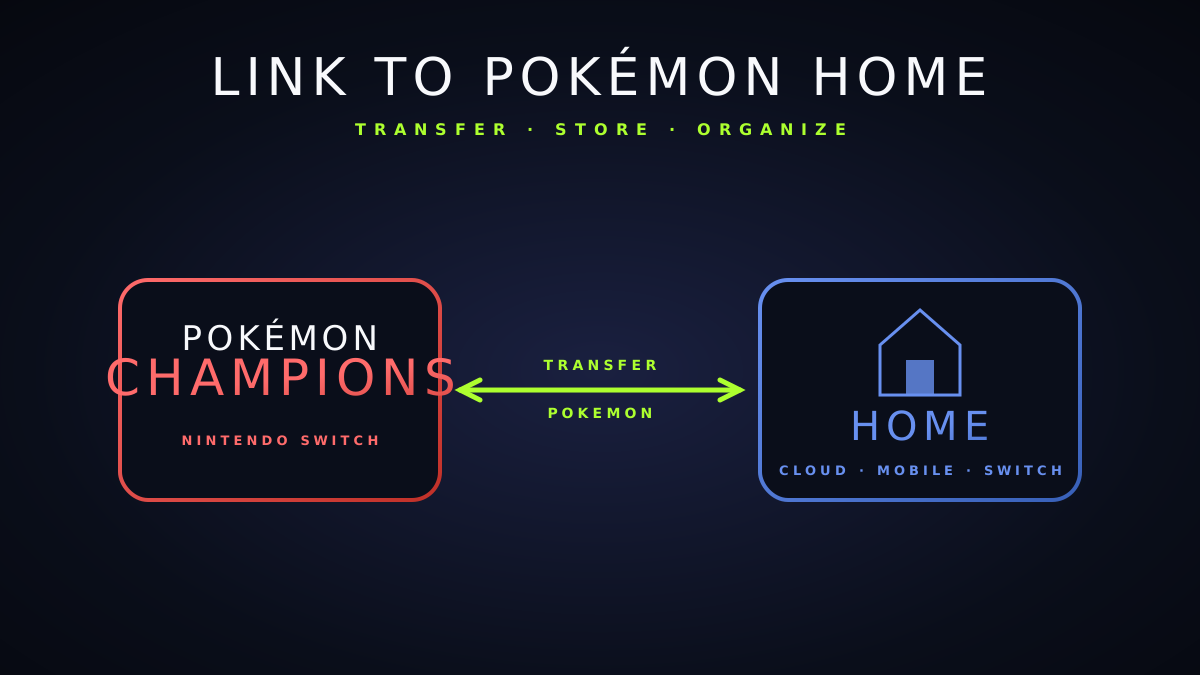
Linking Pokemon Champions to Pokemon Home requires three things: a Nintendo Account, an active Pokemon Home subscription at the Premium tier, and a Pokemon Champions account at least five days old. The account age requirement was implemented to prevent abuse of the transfer system by newly created accounts and cannot be bypassed. Free Pokemon Home accounts can view transferred Pokemon but cannot perform the actual transfer into Pokemon Champions.
The Premium Pokemon Home subscription costs $15.99 USD annually or $3.99 per month and is purchased through the Nintendo eShop or the Pokemon Home mobile app. The subscription gates several key features including the ability to transfer Pokemon between connected games, the Battle Data service, and the expanded Box storage capacity. For competitive Pokemon Champions players, the transfer functionality alone justifies the subscription cost.
Your Nintendo Account must be the same account linked to both Pokemon Home and Pokemon Champions. If you play Pokemon Champions on mobile with a separate login, you may need to merge accounts or link the Nintendo Account as a third-party auth provider. The Settings menu within Pokemon Champions has an Account Linking section where Nintendo Account connections are managed.
Before attempting the link, update both Pokemon Home and Pokemon Champions to their latest versions. Compatibility between the two applications is version-specific and attempting a transfer with outdated software produces an error code that many players misinterpret as a connectivity failure. Check for pending updates in the App Store, Google Play, or Nintendo eShop and install them before beginning the linking process.
A Nintendo Account and Pokemon Home subscription are required before linking
Step-by-Step Linking Process
Open Pokemon Home on your mobile device or Nintendo Switch. Navigate to the Settings menu by tapping the gear icon in the top right corner of the main screen. Within Settings, scroll to the Connected Games section and tap Manage Connections. Pokemon Champions should appear in the available connections list if both applications are logged into the same Nintendo Account. Tap Connect next to Pokemon Champions and confirm the connection when prompted.
Switch to Pokemon Champions and open the main menu, then navigate to Settings followed by Data and Connectivity. Select Pokemon Home Sync and tap Enable Sync. The game will display a six-digit verification code. Return to Pokemon Home and enter this verification code in the Connection Confirmation field that appeared when you confirmed the connection in the previous step. Entering the code correctly completes the link and enables the transfer interface.
After linking, the transfer interface is accessed through the Pokemon Storage screen in Pokemon Champions by tapping the Home button in the top left corner of the storage grid. This opens a split-view showing your Pokemon Home boxes on the left and your Pokemon Champions storage on the right. Drag Pokemon from the Home side to the Champions side to initiate a transfer. Each transfer requires confirmation and a short processing time of two to five seconds per Pokemon.
Transferred Pokemon arrive in a designated Import Box in your Pokemon Champions storage, not directly in your team or main storage boxes. From the Import Box, you can inspect each transferred Pokemon to verify its stats, review any move replacements that occurred, and assign held items before adding it to your competitive team. The Import Box holds up to 30 Pokemon at a time; clear it before initiating large transfer batches.

What Transfers and What Does Not
Pokemon that exist in the Pokemon Champions Pokedex can be transferred in. As of Season Eight, Pokemon Champions supports all Pokemon from Generation One through Generation Nine including most regional forms and paradox Pokemon. Pokemon from future generations added in Pokemon Legends games that have not yet been added to the Pokemon Champions Pokedex cannot be transferred and will display a compatibility error in the transfer interface.
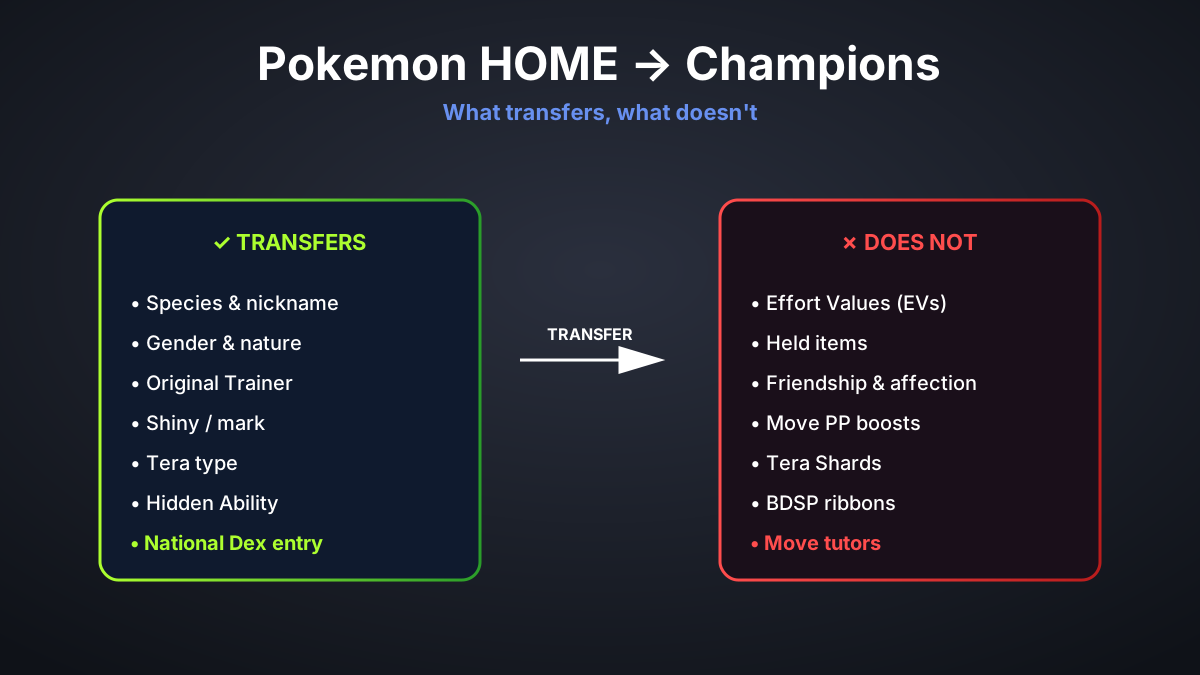
EVs, IVs, natures, and the current nickname of a transferred Pokemon carry over intact. Moves are transferred if they exist in the Pokemon Champions move pool for that Pokemon. Moves that do not exist in Pokemon Champions, such as signature moves from other game modes or event-exclusive moves not added to Champions, are replaced by the Pokemon default level-up move at the appropriate tier. Review your moved set after transfer and use TMs to restore intended moves if replacements occurred.
Held items do not transfer. A Pokemon holding a Choice Scarf in Pokemon Home will arrive in Pokemon Champions without any held item. This is a deliberate game design decision to prevent items from different game economies crossing over. Reapply any intended held items from your Pokemon Champions inventory after the transfer. Mega Stones in particular must be reacquired through Pokemon Champions in-game methods as described in the Equip Mega Stones guide.
Ribbons and marks on transferred Pokemon are preserved as cosmetic records of the Pokemon history in other games. Certain ribbon types unlock cosmetic bonuses in Pokemon Champions such as alternate title displays and special animations in the pre-battle screen. The World Championship Ribbon in particular unlocks a golden nameplate effect if the Pokemon was used in a sanctioned official tournament, which is a desirable cosmetic for competitive prestige builds.
Troubleshooting Common Transfer Errors
Error code 8003 indicates a version mismatch between your Pokemon Home and Pokemon Champions installations. Update both applications fully and retry. If both applications are current and the error persists, the error may indicate that Pokemon Home servers are experiencing a temporary outage. Check the official Nintendo server status page and the Pokemon Champions social media for maintenance notifications.
If transferred Pokemon show incorrect stats, the most common cause is a nature or EV discrepancy between what you expected and what the source Pokemon actually had. Use the Pokemon Champions summary screen to verify EVs and natures post-transfer. If an IV appears lower than expected, confirm that the source game used the same IV calculation base as Pokemon Champions, as some older game titles use a different hidden power calculation that can appear as a discrepancy.
The verification code input failing is almost always caused by entering the six-digit code incorrectly or allowing it to expire. The verification code displayed in Pokemon Champions expires after five minutes. If you did not complete the Pokemon Home input within that window, return to Pokemon Champions and generate a new code. Codes are single-use and expire on use or timeout.
Pokemon that have been flagged by the Pokemon Home integrity system as having irregular data cannot be transferred to Pokemon Champions. These Pokemon will display a lock icon in the transfer interface. This typically affects Pokemon generated through third-party save editing tools that introduced invalid data combinations. There is no bypass for the integrity flag and the affected Pokemon cannot be moved into Pokemon Champions through any official method.
Managing Your Transferred Pokemon Efficiently
Transferring your competitive team in batches rather than one at a time is more efficient because the Import Box processes up to 30 at once and each batch only requires a single confirmation step. Plan your transfers in groups corresponding to intended teams or team archetypes rather than transferring all available Pokemon at once, which can overwhelm the Import Box and require multiple clearing sessions.
After transferring, use the Pokemon Champions EV checker in the Summary screen to verify spreads are correct for the competitive format. Pokemon Champions uses the same 252-252-4 and 252-HP-4 spread conventions as other competitive formats but confirming the transferred values match your intent avoids discovering a miscalculation during an important ranked match.
Keep a record in Pokemon Home of which Pokemon have been transferred to avoid confusion when managing large collections. Pokemon Home provides a transfer history log in the Premium account settings that timestamps each transfer and records the destination game. Reviewing this log periodically helps you identify Pokemon that arrived with unexpected changes and trace the source of any discrepancy.
For players building multiple teams simultaneously, the Import Box workflow supports assigning transferred Pokemon to specific storage boxes in Pokemon Champions immediately after transfer. Creating labeled boxes for each planned team before initiating large transfers keeps your storage organized and makes team building sessions more efficient. Spending ten minutes on storage organization before a transfer batch pays dividends in reduced friction during team assembly.